
Frequently asked questions about our app
Our app is used by tens of thousands of people, so of course questions come up now and then.
On this page you'll find the most common questions - with answers. The page is split into two sections:
On this page you'll find the most common questions - with answers. The page is split into two sections:
- General questions
- How do you do that?
Is your question not listed?
There are already lots of questions and solutions in the community. Yours may already be there too. If not, create a post in the community and add the category 'App-support'.

General questions
First of all, you don't have to 🙂 But we do recommend always using the latest version of the app.
We're always improving our products, and the MM app is an important part of that.
Sometimes we add new features or improve security and stability. We also sometimes need to adapt the app to new operating systems from Apple or Android.
We're always improving our products, and the MM app is an important part of that.
Sometimes we add new features or improve security and stability. We also sometimes need to adapt the app to new operating systems from Apple or Android.
Nothing at all. You can use it for free. There are no hidden costs and it doesn't have any ads.
Yes, of course. Before we made the app, everyone did.
The best help for that is our book: the Makkelijke Moestuin bible. You'll find it in the shop. Even people who use the app like to keep the book as a reference, or use it for inspiration.
The best help for that is our book: the Makkelijke Moestuin bible. You'll find it in the shop. Even people who use the app like to keep the book as a reference, or use it for inspiration.
No.
That's not what the app was made for. You can, but plants grow a bit differently in a cold frame or greenhouse - often faster - so the app's timing won't always be right.
The MM app works one-to-one with the Makkelijke Moestuin seeds. They are all easy, tasty, fun, and very suitable for growing in raised beds. Many other vegetables aren't.
We also know exactly how these varieties grow. That's important, because every stage is written out and illustrated: Robbin made more than 1000 little drawings for them. We don't know that about other varieties, so they aren't in the app.
We do test new varieties every year, together with lots of other MM gardeners. If we're all enthusiastic, they'll be added to the app the following year. That's how the number of varieties grows.
We also know exactly how these varieties grow. That's important, because every stage is written out and illustrated: Robbin made more than 1000 little drawings for them. We don't know that about other varieties, so they aren't in the app.
We do test new varieties every year, together with lots of other MM gardeners. If we're all enthusiastic, they'll be added to the app the following year. That's how the number of varieties grows.
No. The app is only suitable for mobile devices. That's because computers use different systems than smartphones. The app is also meant to be used near your raised beds. With a desktop, that seems tricky to me 😉
But you can join the MM community. You can get there through the app and through the website.
But you can join the MM community. You can get there through the app and through the website.
How does it work?
For general instructions on how to use the app, please visit the ‘How do you use the app' page first.
Check out the app instructions here
Check out the app instructions here
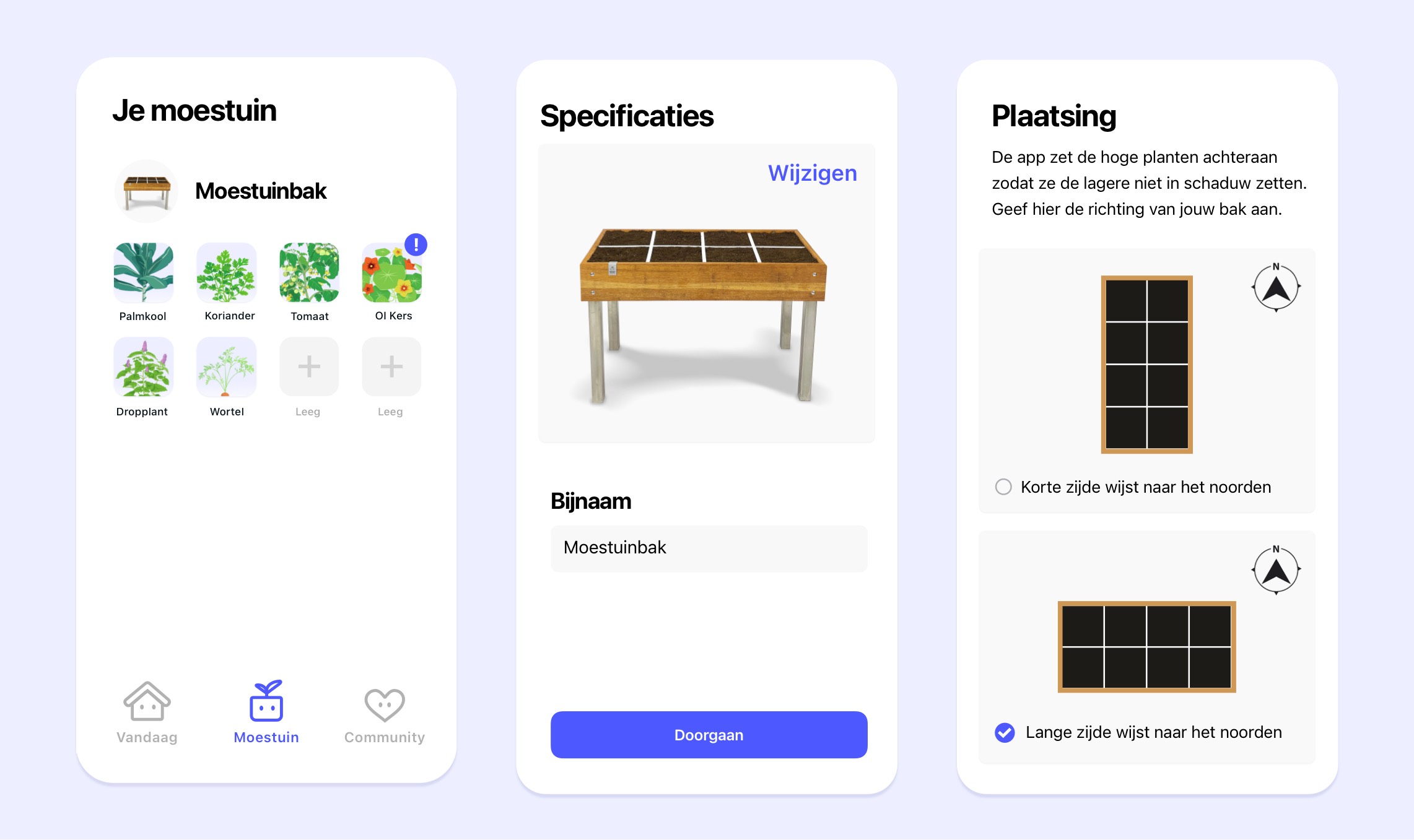
When you're on the screen for your garden, you'll see that each raised bed has a name. Tap it and you'll get a pop-up with the options 'Edit', 'New season', 'Move', and 'Delete'.
Tap 'Edit' and you can:
Tap 'Edit' and you can:
- Change the name of your raised bed.
- Change the type of raised bed. For example, you can choose a raised bed with a trellis.
Does your raised bed have a long side and a short side?
Then you'll also get a third screen where you can adjust the direction of your raised bed in relation to north. But be careful: if you change it when there are already plants in the bed, they will no longer be in the right spot and may shade their neighbours. Or the other way around.
Then you'll also get a third screen where you can adjust the direction of your raised bed in relation to north. But be careful: if you change it when there are already plants in the bed, they will no longer be in the right spot and may shade their neighbours. Or the other way around.
Why do you need to do this?
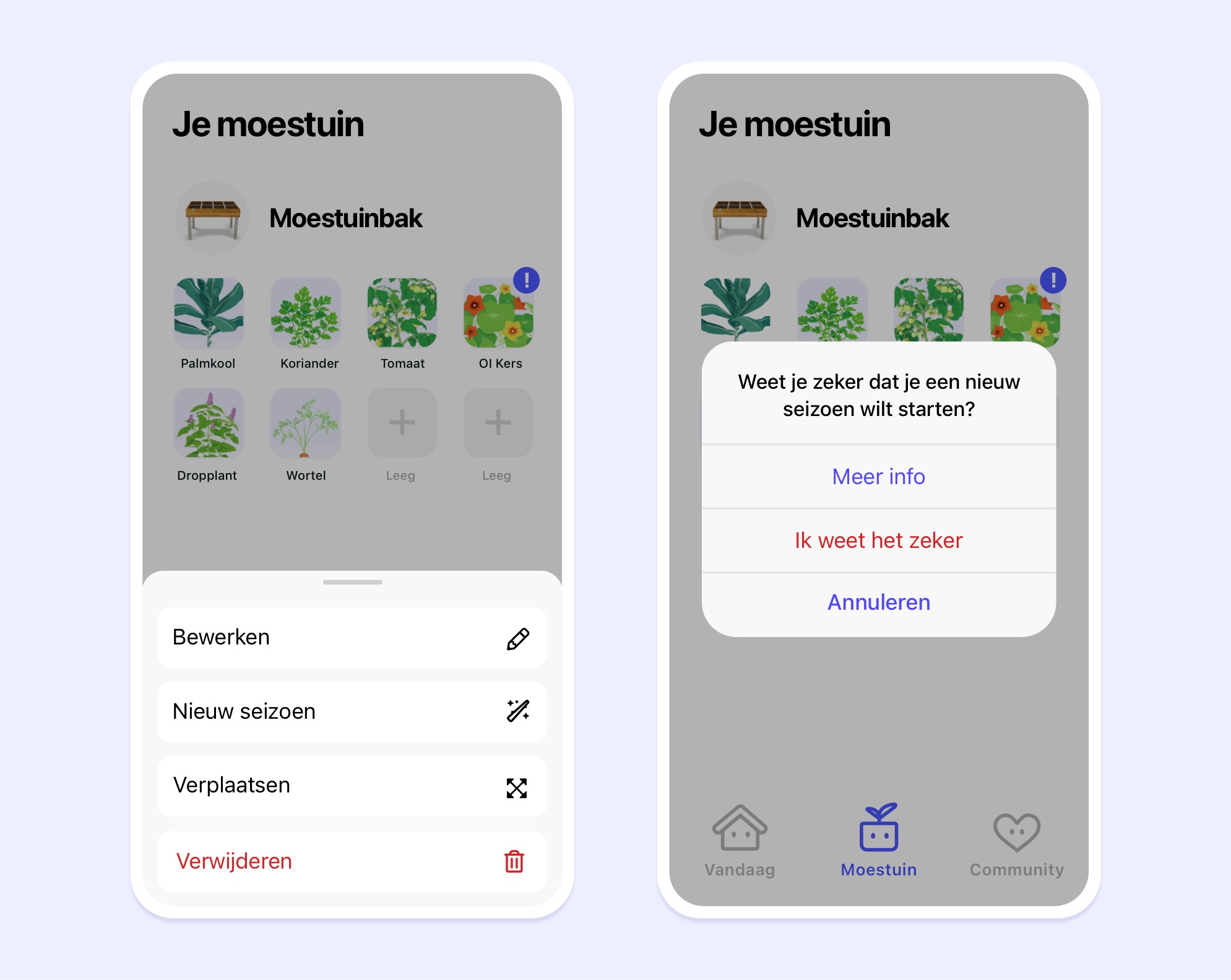
If you used the MM app last year too, you probably already have a few raised beds in it. Even if they are empty now, last year's data is still attached to them: for example, which vegetable was last in a square.
But in your garden, you prepare the raised beds for a new season. You scoop the mix through the whole raised bed so it becomes nice and airy again. At the same time, you top up the plant food and add some fresh mix if your raised bed is no longer completely full. By mixing everything together, you're basically starting from scratch again, so it no longer matters what was in which square last year.
How do you show this in the app?
Tap the name of a raised bed and choose 'New season'. You'll get a pop-up where you confirm your choice:
If you used the MM app last year too, you probably already have a few raised beds in it. Even if they are empty now, last year's data is still attached to them: for example, which vegetable was last in a square.
But in your garden, you prepare the raised beds for a new season. You scoop the mix through the whole raised bed so it becomes nice and airy again. At the same time, you top up the plant food and add some fresh mix if your raised bed is no longer completely full. By mixing everything together, you're basically starting from scratch again, so it no longer matters what was in which square last year.
How do you show this in the app?
Tap the name of a raised bed and choose 'New season'. You'll get a pop-up where you confirm your choice:
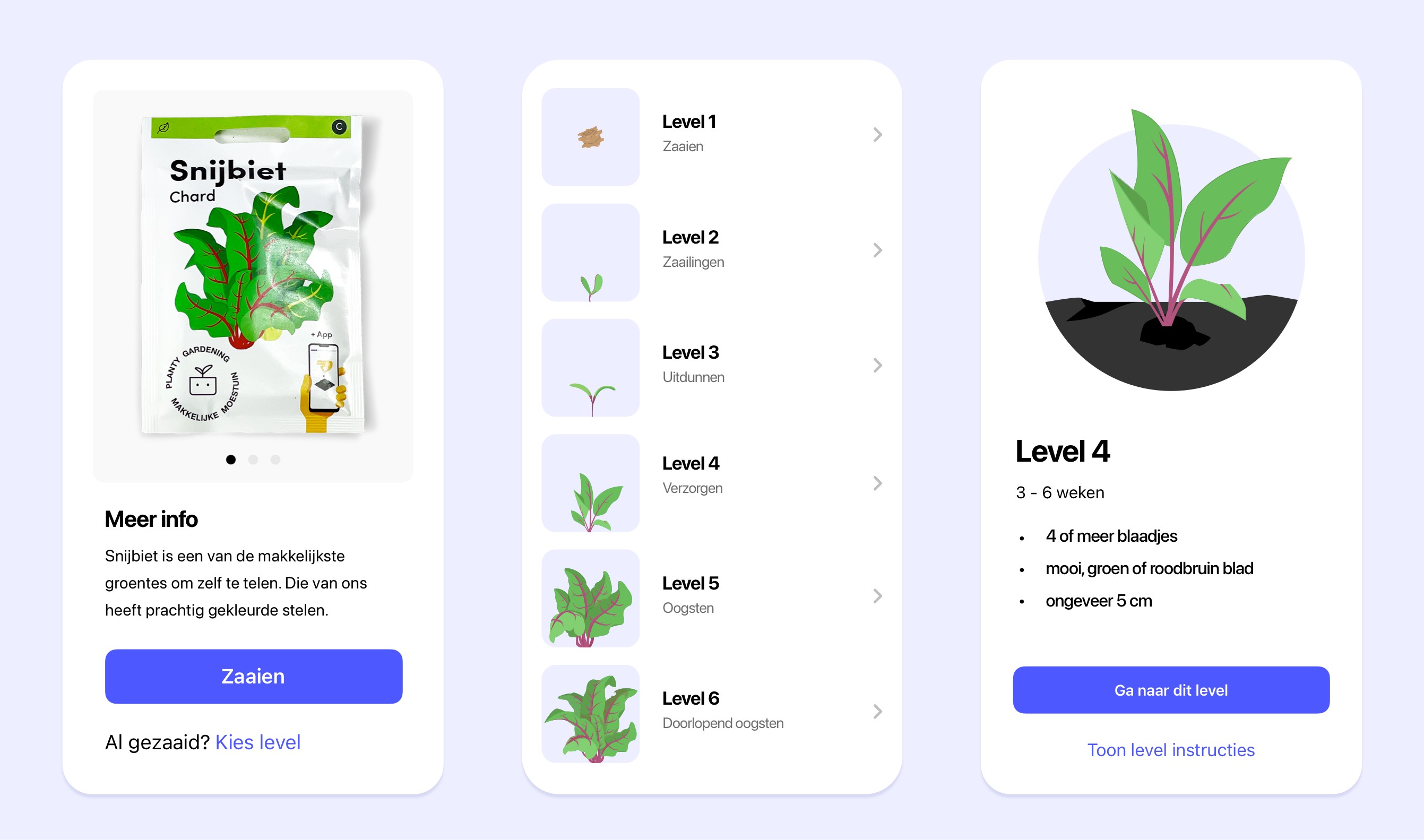
If you want to add an existing plant in the app, here's how:
Click on the patch you want to add it to. Choose the species and click on 'Choose level' under the 'Sow' button. This takes you to the timeline of the plant and you choose the level of yours. Follow the instructions to make sure you chose the right level if you're not sure.
Click on the patch you want to add it to. Choose the species and click on 'Choose level' under the 'Sow' button. This takes you to the timeline of the plant and you choose the level of yours. Follow the instructions to make sure you chose the right level if you're not sure.
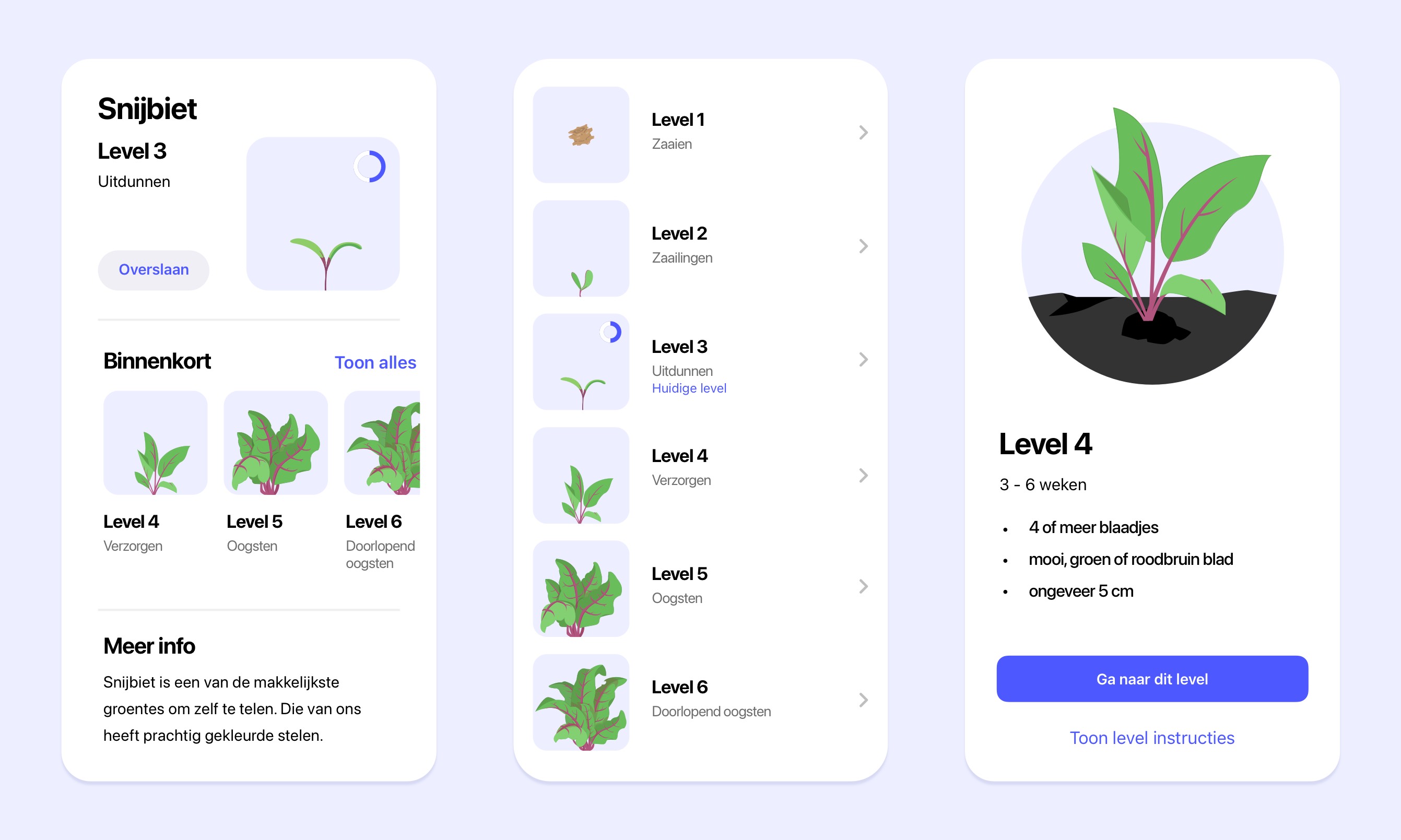
Tap the square with the plant you want to adjust. If there is an exclamation mark, do the checkup first and then tap the square again.
Now you'll see the plant's levels - see the left screen. The current level is at the top, with the upcoming levels below it. To the right of 'Upcoming' is the 'See all' button.
Tap it and you'll see the full timeline - see the middle screen. Choose the level you want for your plant.
Then you'll arrive at the right-hand screen. If needed, follow the matching instructions to make sure you chose the right level.
Now you'll see the plant's levels - see the left screen. The current level is at the top, with the upcoming levels below it. To the right of 'Upcoming' is the 'See all' button.
Tap it and you'll see the full timeline - see the middle screen. Choose the level you want for your plant.
Then you'll arrive at the right-hand screen. If needed, follow the matching instructions to make sure you chose the right level.
Press and hold the square with the plant you want to move. Choose 'Move', then tap the square where you want the plant to go:
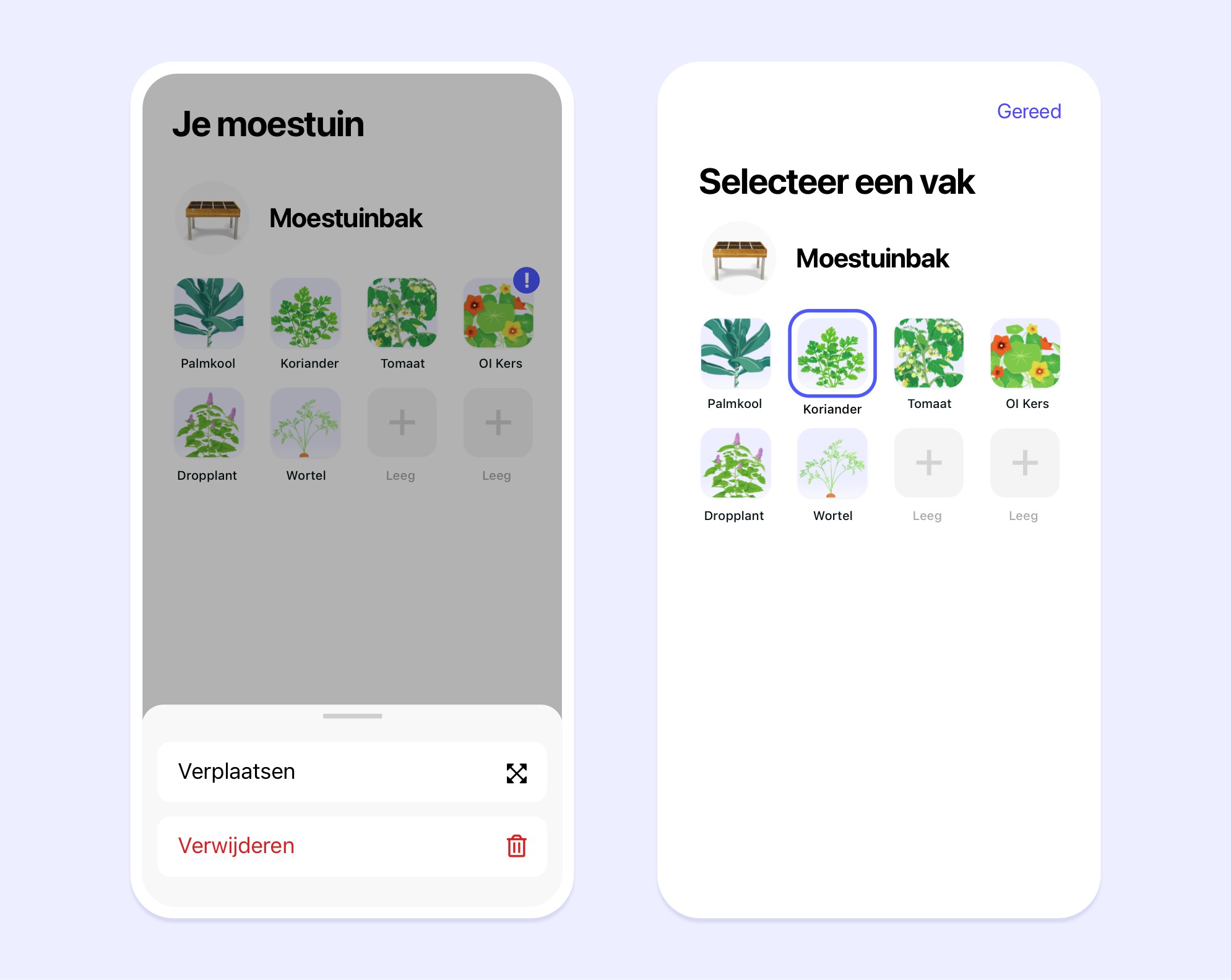
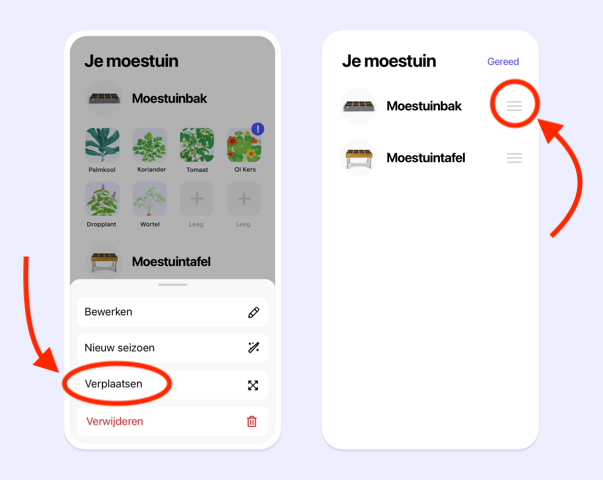
Yes. Tap the name of a raised bed and choose 'Move'.
Now hold your finger on the 3 lines next to the raised bed. You'll see it turn into a kind of bar that you can drag up or down: just drag it exactly where you want it.
Now hold your finger on the 3 lines next to the raised bed. You'll see it turn into a kind of bar that you can drag up or down: just drag it exactly where you want it.
Yes. Go to the square, tap it, and choose the vegetable you want to sow. Then tap 'Sow now' and after that 'Reserve'.
On the next screen, you can choose the day you want to receive a reminder to start sowing. If you don't choose a date, you'll get the reminder on the first day sowing is possible.
On the next screen, you can choose the day you want to receive a reminder to start sowing. If you don't choose a date, you'll get the reminder on the first day sowing is possible.
Yes. Tap the square and scroll all the way down in the seed list. Under 'Other', you'll see the option 'Custom plant'. Tap it and fill in the name on the next screen. You won't get messages or instructions for that square.
The app has 6 raised-bed sizes, plus the MM-minis. The app has all the right data for the squares in these raised beds: position, height, suitable seeds, and so on.
For now, we won't be adding more sizes. With these sizes, and a bit of creativity, you can make almost any other size by combining raised beds and/or blocking squares by reserving them.
Why can't you just add any raised bed yourself?
We regularly get asked why it isn't possible to add a homemade raised bed with different dimensions to the app. It sounds simple: you enter the number of squares and that's it. Right?
Well, no. As mentioned above, in the app every square is linked to its position, the height of the plants, and what was in it before.
If you could add a raised bed with a random number of squares, the app wouldn't know what belongs where and couldn't give you good advice. To make that possible, we'd have to write a completely new program. I think you'll understand why we're not too keen on that 😉
It would also create problems with the available space. How would you show a bed of 3 x 16 squares on a phone screen?
For now, we won't be adding more sizes. With these sizes, and a bit of creativity, you can make almost any other size by combining raised beds and/or blocking squares by reserving them.
Why can't you just add any raised bed yourself?
We regularly get asked why it isn't possible to add a homemade raised bed with different dimensions to the app. It sounds simple: you enter the number of squares and that's it. Right?
Well, no. As mentioned above, in the app every square is linked to its position, the height of the plants, and what was in it before.
If you could add a raised bed with a random number of squares, the app wouldn't know what belongs where and couldn't give you good advice. To make that possible, we'd have to write a completely new program. I think you'll understand why we're not too keen on that 😉
It would also create problems with the available space. How would you show a bed of 3 x 16 squares on a phone screen?
No, a trellis always goes on the north side of the raised bed. That's the best spot anyway, and the app is set up for that.
Absolutely. I use it myself too: it's really handy. But if you've been growing vegetables for a few years, you probably don't need the information in the chatbot anymore. Then you'll want to make your choice right away:
- just continue, with or without skipping the steps
- remove the plant, by pressing the square and choosing 'Remove'
- or wait a little longer and see how it goes: 'Delay'
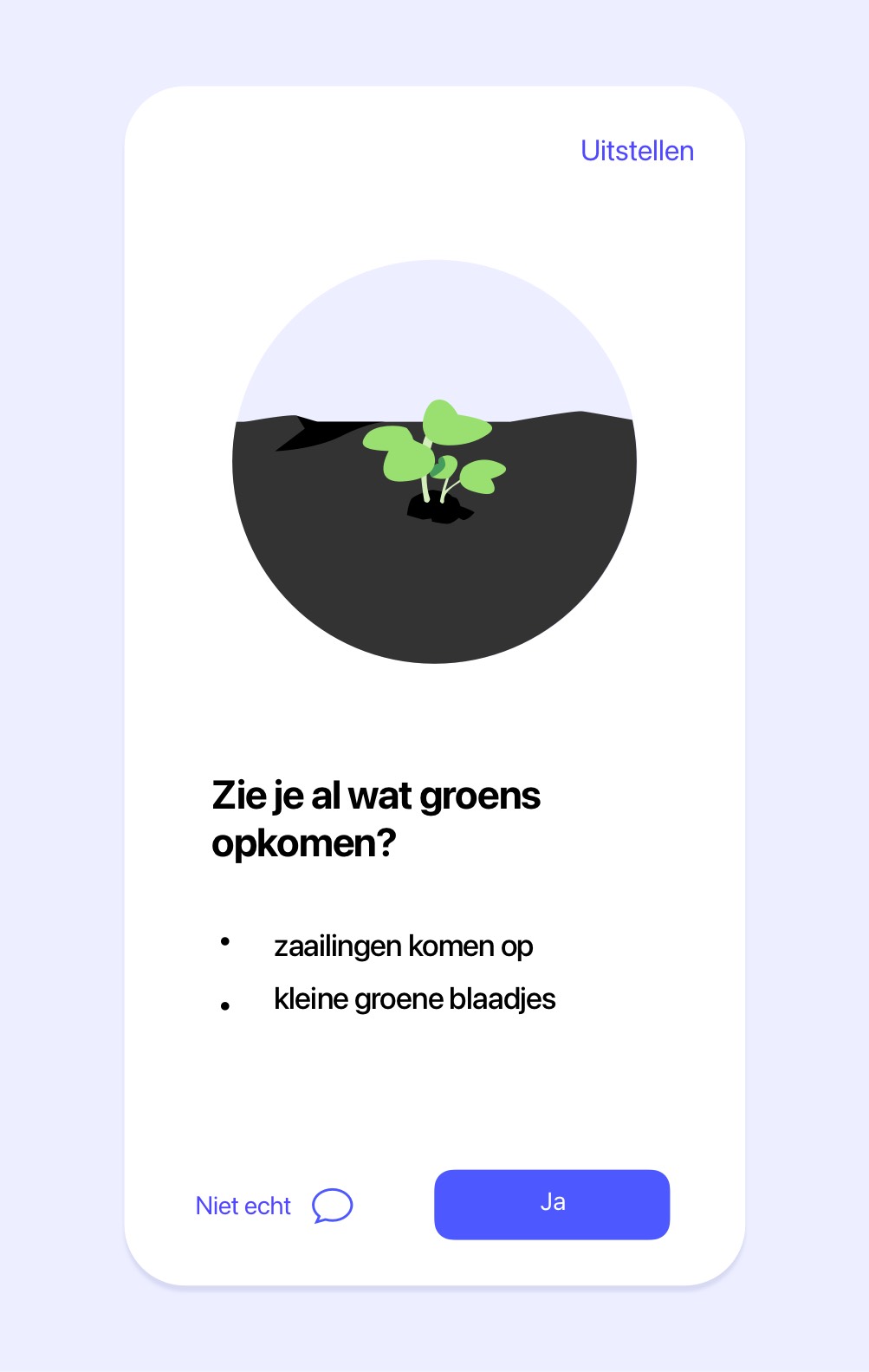
The Delay button is at the top right of the screen:
No. The Makkelijke Moestuin app is made for the Netherlands and Belgium. You can't download it in other countries.